> ## Documentation Index
> Fetch the complete documentation index at: https://docs.olly.new/llms.txt
> Use this file to discover all available pages before exploring further.
# Sign in to Olly
## Overview
This page explains how to sign in to Olly, how you enter an organization, and how Olly decides which region workspace to open.
## Sign-in options
On the sign-in screen, choose one of the available options:
* `Continue with Coralogix`
* `Continue with Google`
* `Sign in with email`
* `Sign up to Olly`
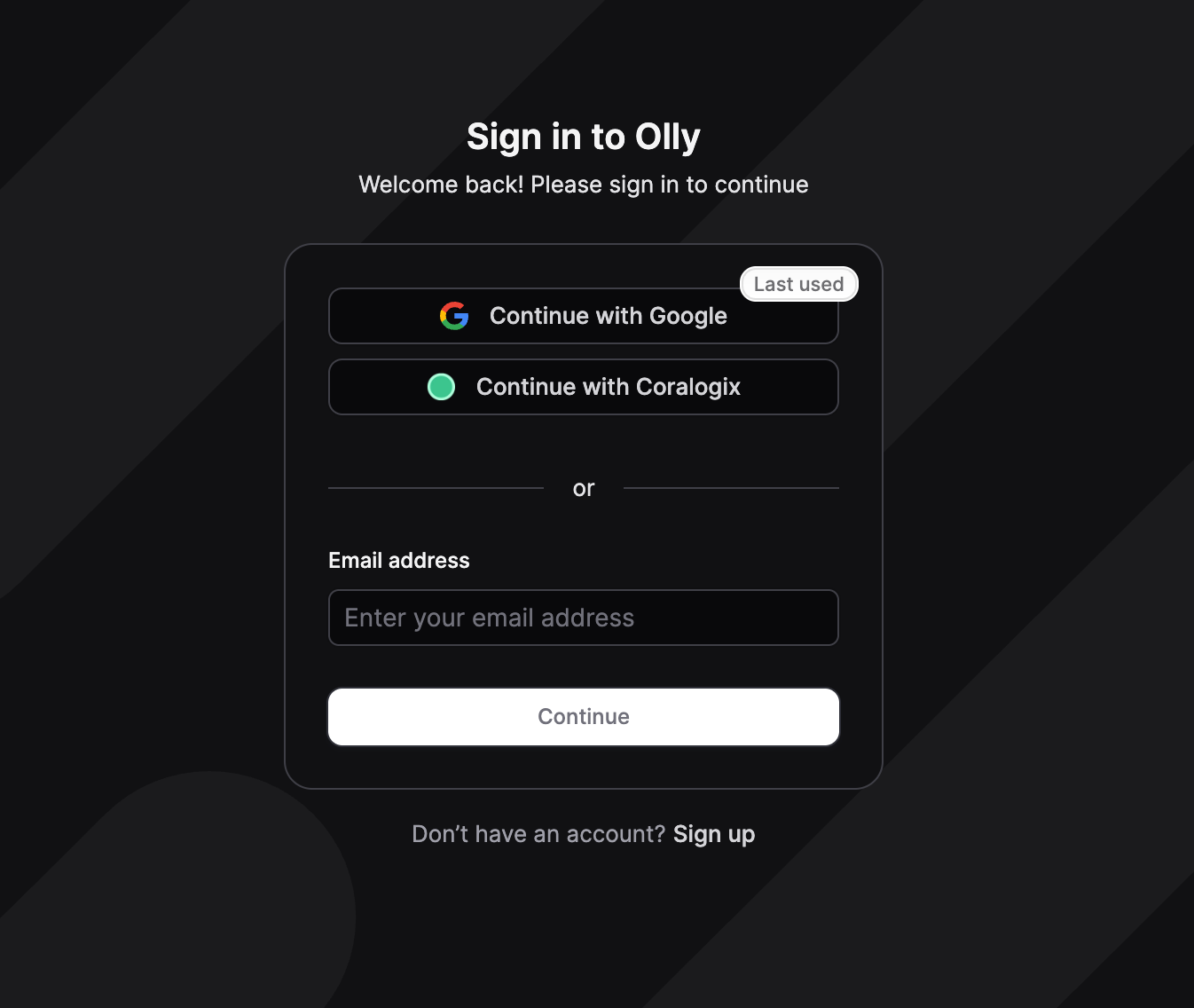 ### Continue with Coralogix
Use this option when you want to sign in using your Coralogix identity and context.
1. Select `Continue with Coralogix`.
2. Select your organization's region.
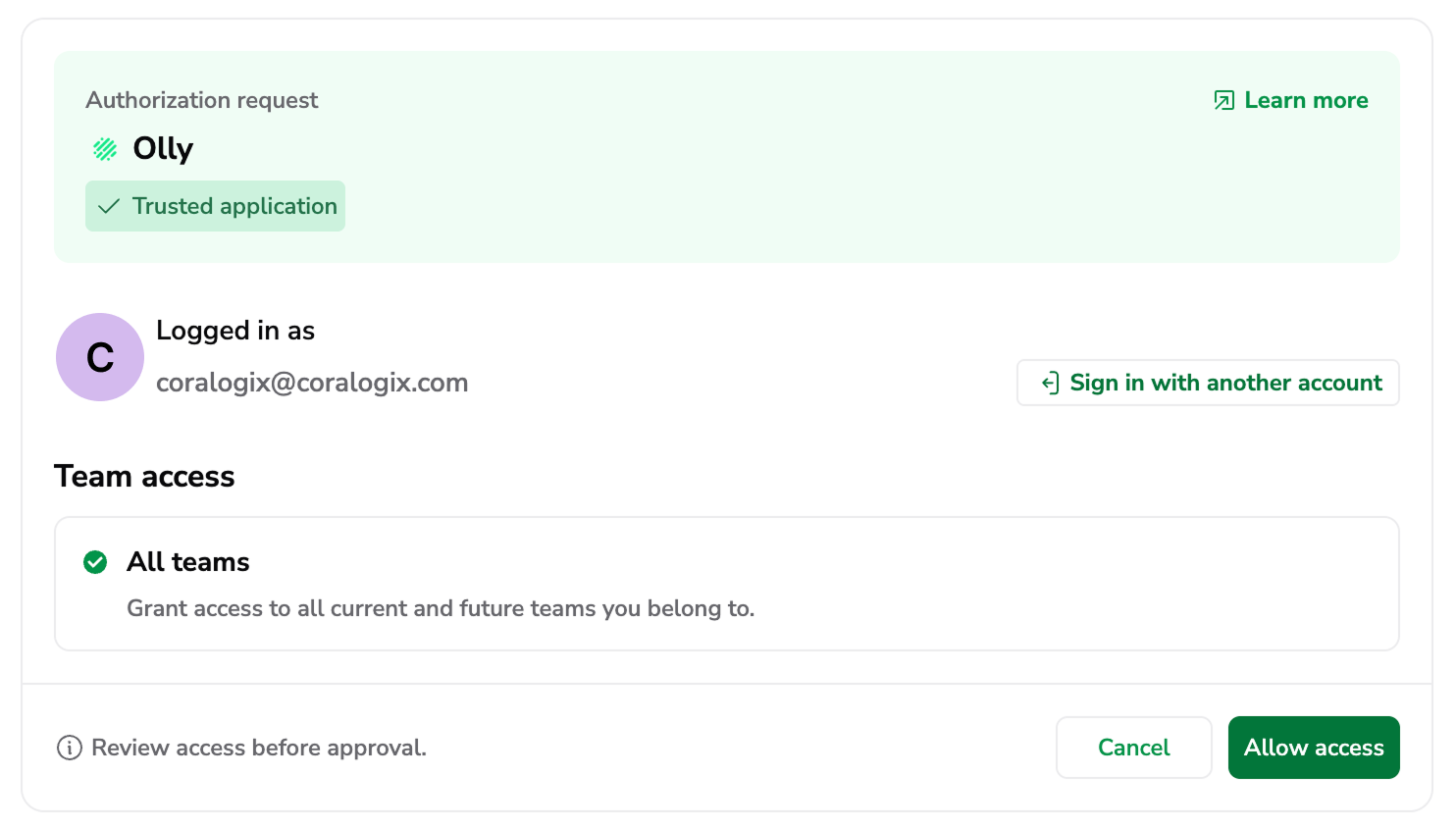
3. Complete the authorization request by choosing your Coralogix account to sign in and selecting **Allow access**.
4. Return to Olly.
If you have access to multiple organizations, you’ll be prompted to choose which organization to enter.
Coralogix also affects which region Olly opens.
#### What happens when you select Allow access
When you select **Allow access**, you authorize Olly to securely connect to your Coralogix account using [OAuth](https://coralogix.com/docs/user-guides/account-management/user-management/oauth/). This means that:
1. **An access token is issued**: Coralogix grants Olly a secure access token that represents your approval.
2. **Scope is defined**: The access token includes the teams and environments you allowed Olly to access.
3. **Data sources can be added**: If your team is [AI-enabled](https://docs.olly.new/content/olly-enable-in-cx#enable-olly-for-your-team), Olly uses this access token when adding a data source via the Coralogix tab, limited to the token’s scope.
### Continue with Coralogix
Use this option when you want to sign in using your Coralogix identity and context.
1. Select `Continue with Coralogix`.
2. Select your organization's region.
3. Complete the authorization request by choosing your Coralogix account to sign in and selecting **Allow access**.
4. Return to Olly.
If you have access to multiple organizations, you’ll be prompted to choose which organization to enter.
Coralogix also affects which region Olly opens.
#### What happens when you select Allow access
When you select **Allow access**, you authorize Olly to securely connect to your Coralogix account using [OAuth](https://coralogix.com/docs/user-guides/account-management/user-management/oauth/). This means that:
1. **An access token is issued**: Coralogix grants Olly a secure access token that represents your approval.
2. **Scope is defined**: The access token includes the teams and environments you allowed Olly to access.
3. **Data sources can be added**: If your team is [AI-enabled](https://docs.olly.new/content/olly-enable-in-cx#enable-olly-for-your-team), Olly uses this access token when adding a data source via the Coralogix tab, limited to the token’s scope.
 ### Continue with Google
Use this option to sign in to Olly with your Google account.
1. Select `Continue with Google`.
2. Choose the Google account you want to use.
3. Return to Olly.
If you have access to multiple organizations, you’ll be prompted to choose which organization to enter.
### Sign in with email
Use this option to sign in with an email address.
1. Select `Sign in with email`.
2. Enter your email address and continue.
3. Follow the on-screen steps to complete sign-in.
### Sign up to Olly
Use this option if you don’t have an Olly account yet and your organization allows sign-ups (for example, during onboarding or a proof of concept) or you have received an invitation to sign-up.
1. Select `Sign up to Olly`.
2. Enter your email address and follow the on-screen steps to create your account.
3. After you finish sign-up, Olly takes you into your organization.
If you can’t sign up or you don’t see your organization after sign-up, contact your Coralogix representative.
## Join an organization
You can join an organization in two ways:
* Direct invitation: someone adds your email address to the organization.
* Domain-based access: your email domain is allowed to join automatically (if enabled for the organization).
On your first sign-in:
* If you have access to only one organization, Olly takes you there automatically.
* If you have access to multiple organizations, Olly asks you to choose which one to enter.
You can switch organizations later from the organization selector in the UI.
## Choose an organization
If you have access to more than one Olly organization:
* On sign-in, you’ll be prompted to choose which organization to enter.
* After you enter an organization, you can switch organizations later from the organization selector.
If you have access to only one organization, Olly takes you there automatically.
## How Olly selects your region at sign-in
After you enter an organization, Olly opens a region workspace using the following order:
1. **Last used region**: Olly returns you to the region you used most recently within that organization.
2. **Region from Coralogix sign-in**: If you signed in using `Continue with Coralogix`, Olly opens the region that matches your Coralogix sign-in context.
3. **Organization default region**: If neither of the above applies, Olly opens the organization’s default region.
If you have access to multiple regions, you can switch regions at any time from the region selector.
## What you can do after you sign in
Once you’re inside an organization:
* You can use any shared data sources that an admin shared with you.
* You can create your own private data sources for your own use.
* If you are an Org Admin, you can create and manage shared data sources for your team.
To create or manage data sources, go to `Settings → Data sources`.
## Connect Coralogix during onboarding
When you choose `Continue with Coralogix` during onboarding, or when you sign in with Coralogix while creating a data source, you go through a Coralogix OAuth flow.
During this flow, Olly requests access to:
* Read data from the Coralogix team or teams you select
* Create or use a Team API key on your behalf (depending on your Coralogix permissions)
After you complete the flow:
* Olly creates a data source (private or shared, depending on your choice and role).
* You select the specific Coralogix team to associate with that data source.
For the full set of options (API key vs Coralogix sign-in, private vs shared, sharing, and Slack), see the Data sources page.
## Next steps
* [Create](https://docs.olly.new/content/olly-cx-data-sources) a data source from `Settings → Data sources`.
* If you landed in the wrong region, switch regions from the region selector in the header or user menu.
## FAQs
Any user can login to Olly with their Coralogix user.
Yes - an **Olly organization** represents your account (or domain).
Within your account:
* You can operate across multiple **regions**.
* In each region, users can connect one or more **Coralogix teams as data sources**.
### Continue with Google
Use this option to sign in to Olly with your Google account.
1. Select `Continue with Google`.
2. Choose the Google account you want to use.
3. Return to Olly.
If you have access to multiple organizations, you’ll be prompted to choose which organization to enter.
### Sign in with email
Use this option to sign in with an email address.
1. Select `Sign in with email`.
2. Enter your email address and continue.
3. Follow the on-screen steps to complete sign-in.
### Sign up to Olly
Use this option if you don’t have an Olly account yet and your organization allows sign-ups (for example, during onboarding or a proof of concept) or you have received an invitation to sign-up.
1. Select `Sign up to Olly`.
2. Enter your email address and follow the on-screen steps to create your account.
3. After you finish sign-up, Olly takes you into your organization.
If you can’t sign up or you don’t see your organization after sign-up, contact your Coralogix representative.
## Join an organization
You can join an organization in two ways:
* Direct invitation: someone adds your email address to the organization.
* Domain-based access: your email domain is allowed to join automatically (if enabled for the organization).
On your first sign-in:
* If you have access to only one organization, Olly takes you there automatically.
* If you have access to multiple organizations, Olly asks you to choose which one to enter.
You can switch organizations later from the organization selector in the UI.
## Choose an organization
If you have access to more than one Olly organization:
* On sign-in, you’ll be prompted to choose which organization to enter.
* After you enter an organization, you can switch organizations later from the organization selector.
If you have access to only one organization, Olly takes you there automatically.
## How Olly selects your region at sign-in
After you enter an organization, Olly opens a region workspace using the following order:
1. **Last used region**: Olly returns you to the region you used most recently within that organization.
2. **Region from Coralogix sign-in**: If you signed in using `Continue with Coralogix`, Olly opens the region that matches your Coralogix sign-in context.
3. **Organization default region**: If neither of the above applies, Olly opens the organization’s default region.
If you have access to multiple regions, you can switch regions at any time from the region selector.
## What you can do after you sign in
Once you’re inside an organization:
* You can use any shared data sources that an admin shared with you.
* You can create your own private data sources for your own use.
* If you are an Org Admin, you can create and manage shared data sources for your team.
To create or manage data sources, go to `Settings → Data sources`.
## Connect Coralogix during onboarding
When you choose `Continue with Coralogix` during onboarding, or when you sign in with Coralogix while creating a data source, you go through a Coralogix OAuth flow.
During this flow, Olly requests access to:
* Read data from the Coralogix team or teams you select
* Create or use a Team API key on your behalf (depending on your Coralogix permissions)
After you complete the flow:
* Olly creates a data source (private or shared, depending on your choice and role).
* You select the specific Coralogix team to associate with that data source.
For the full set of options (API key vs Coralogix sign-in, private vs shared, sharing, and Slack), see the Data sources page.
## Next steps
* [Create](https://docs.olly.new/content/olly-cx-data-sources) a data source from `Settings → Data sources`.
* If you landed in the wrong region, switch regions from the region selector in the header or user menu.
## FAQs
Any user can login to Olly with their Coralogix user.
Yes - an **Olly organization** represents your account (or domain).
Within your account:
* You can operate across multiple **regions**.
* In each region, users can connect one or more **Coralogix teams as data sources**.
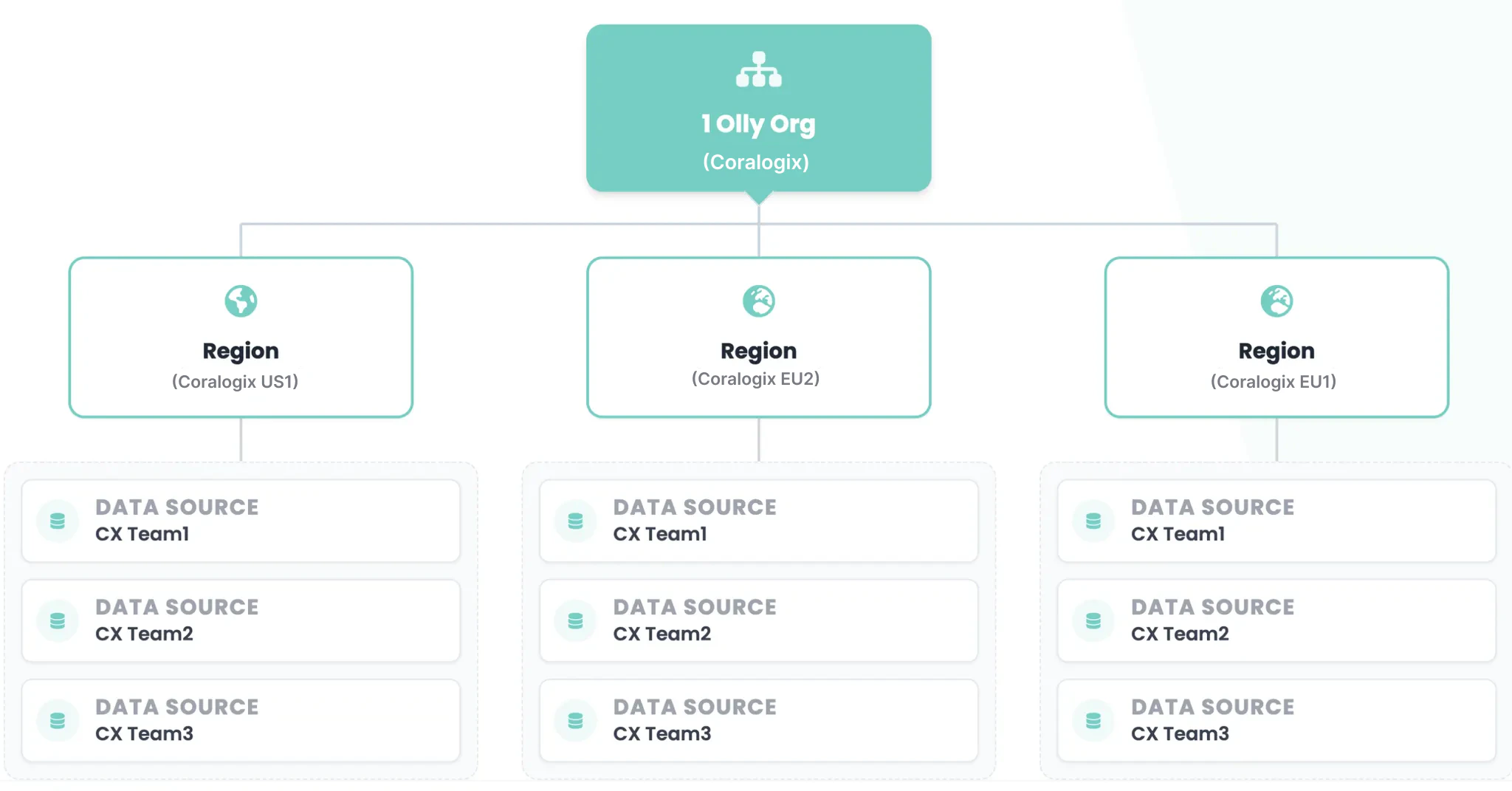 No - each prompt runs against a single connected team (data source).
However, within the same chat, you can switch between teams — as long as they are in the same region — and continue the conversation using a different data source for the next prompt.
No - each prompt runs against a single connected team (data source).
However, within the same chat, you can switch between teams — as long as they are in the same region — and continue the conversation using a different data source for the next prompt.