> ## Documentation Index
> Fetch the complete documentation index at: https://docs.olly.new/llms.txt
> Use this file to discover all available pages before exploring further.
# Slack
Bring Olly into team conversations on Slack. Mention Olly in **public and private channels**, or in a **DM** to get threaded answers and linked artifacts directly in Olly.
## Overview
Enable seamless integration between Olly and Slack to bring AI-powered collaboration directly into your team’s communication.\
With Olly available in channels and DMs, your team can access intelligent answers and artifacts — right where conversations happen.
## Why integrate?
* Communicate directly with Olly in channels or DMs using your region handle (e.g., `@Olly-EU2`).
* Receive threaded responses from Olly to keep conversations organized.
* Get links from Slack back to Olly artifacts for deeper exploration.
* Streamline collaboration by turning chat requests into tracked insights and actions.
 ## Setup requirements
To setup the Olly Slack integration, make sure the following requirements are met:
* **You have Olly organization admin permissions**: Only organization admins can install and manage the Slack integration.
* **You use a shared Coralogix data source**: Slack can only use shared data sources.
* **You connect only one Olly organization per Slack workspace**: A Slack workspace can be connected to only one Olly organization at a time. If an Olly integration already exists in that workspace, you can’t connect another Olly organization from the same region.
* **You use the correct region-specific Olly app and handle**: Add the Olly app to channels using `/invite @Olly-` (for example, `/invite @Olly-EU2`) and always mention Olly using the matching region-specific handle.
## How to install
1. Go to **Settings → Connections → Integrations → Slack**.
2. Toggle to **Enable**.
3. Complete the Slack OAuth flow.
4. When prompted, choose which shared data source Slack should use. **Only shared data sources can be exposed to Slack**.
5. Save your changes.
## Setup requirements
To setup the Olly Slack integration, make sure the following requirements are met:
* **You have Olly organization admin permissions**: Only organization admins can install and manage the Slack integration.
* **You use a shared Coralogix data source**: Slack can only use shared data sources.
* **You connect only one Olly organization per Slack workspace**: A Slack workspace can be connected to only one Olly organization at a time. If an Olly integration already exists in that workspace, you can’t connect another Olly organization from the same region.
* **You use the correct region-specific Olly app and handle**: Add the Olly app to channels using `/invite @Olly-` (for example, `/invite @Olly-EU2`) and always mention Olly using the matching region-specific handle.
## How to install
1. Go to **Settings → Connections → Integrations → Slack**.
2. Toggle to **Enable**.
3. Complete the Slack OAuth flow.
4. When prompted, choose which shared data source Slack should use. **Only shared data sources can be exposed to Slack**.
5. Save your changes.
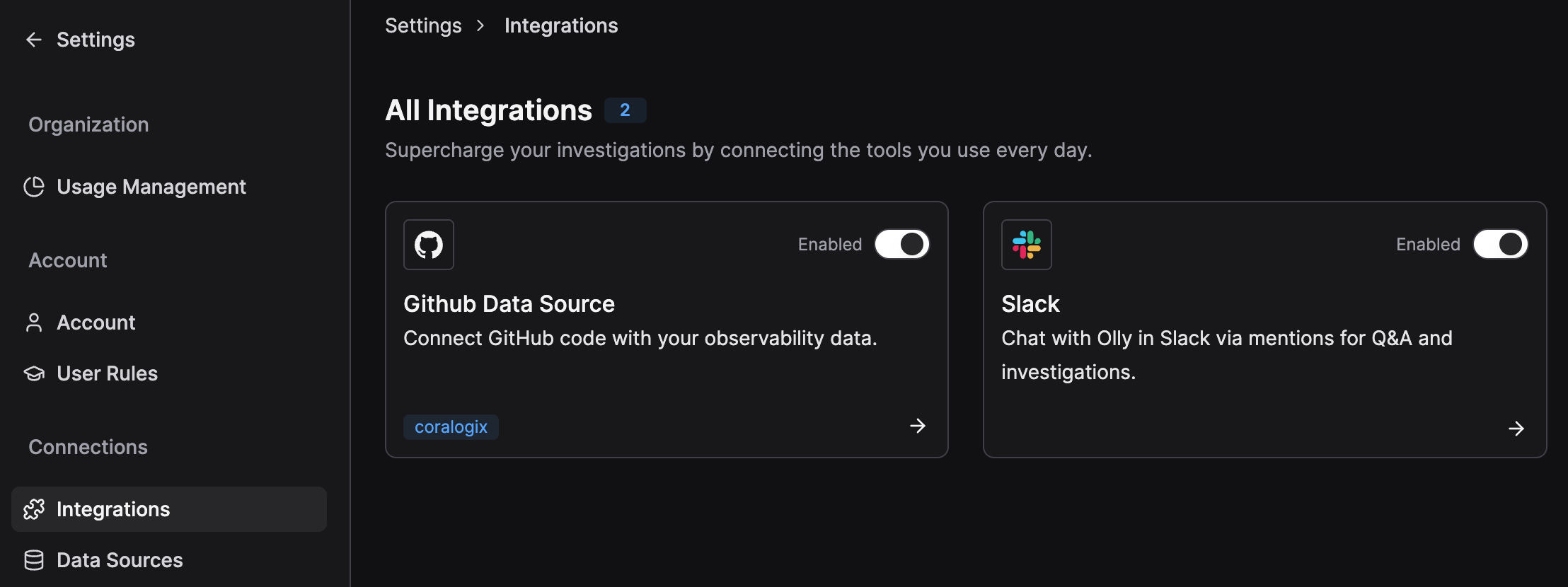 Once enabled, Olly answers using the selected data source.
You can change the Slack data source later. The new selection applies to future questions; past messages are unaffected.
Slack uses one Coralogix data source at a time.
## Usage requirements
To use Olly in Slack without interruptions, make sure the following requirements are met:
* **You have an Olly account**: Slack messages are linked to individual Olly users. If you don’t have an account yet, Olly will ask you to sign up.
* **You’re part of the Olly organization connected to this Slack workspace**: If you’re in Slack but not in the connected Olly organization, Olly won’t be able to answer your questions.
Each Slack workspace can be connected to only one Olly organization at a time.
* **You have available tokens**: Olly checks your personal token quota before answering:
* If you have available tokens, Olly responds normally.
* If your tokens run out during the response, Olly will let you know and still provide a full answer.
* If you reach your token limit, Olly will let you know and prompt you to contact your admin to increase your quota.
## How it works
* In any public or private channel, or in a DM with your Olly app, mention your region-specific handle with a clear prompt:
* `@Olly-EU2 show P95 latency for auth-service (last 24h)`
* `@Olly-EU2 summarize the 500s spike after the latest deploy`
* When you send a message, Olly identifies you using your Slack user and links the request to your Olly account in the organization connected to the Slack workspace.
* Olly replies **in a thread** to keep conversations tidy.
* Continue the conversation with Olly in the thread using the `@Olly-` handle.
* Replies include links to related **artifacts in Olly** for deeper analysis.
* Slack thread content is **not mirrored** as chat in Olly — only artifacts are accessible.
Once enabled, Olly answers using the selected data source.
You can change the Slack data source later. The new selection applies to future questions; past messages are unaffected.
Slack uses one Coralogix data source at a time.
## Usage requirements
To use Olly in Slack without interruptions, make sure the following requirements are met:
* **You have an Olly account**: Slack messages are linked to individual Olly users. If you don’t have an account yet, Olly will ask you to sign up.
* **You’re part of the Olly organization connected to this Slack workspace**: If you’re in Slack but not in the connected Olly organization, Olly won’t be able to answer your questions.
Each Slack workspace can be connected to only one Olly organization at a time.
* **You have available tokens**: Olly checks your personal token quota before answering:
* If you have available tokens, Olly responds normally.
* If your tokens run out during the response, Olly will let you know and still provide a full answer.
* If you reach your token limit, Olly will let you know and prompt you to contact your admin to increase your quota.
## How it works
* In any public or private channel, or in a DM with your Olly app, mention your region-specific handle with a clear prompt:
* `@Olly-EU2 show P95 latency for auth-service (last 24h)`
* `@Olly-EU2 summarize the 500s spike after the latest deploy`
* When you send a message, Olly identifies you using your Slack user and links the request to your Olly account in the organization connected to the Slack workspace.
* Olly replies **in a thread** to keep conversations tidy.
* Continue the conversation with Olly in the thread using the `@Olly-` handle.
* Replies include links to related **artifacts in Olly** for deeper analysis.
* Slack thread content is **not mirrored** as chat in Olly — only artifacts are accessible.