

Creating a private data source
- Go to Settings → Data sources.
- Select Add data source → Coralogix.
- Choose Private.
- Choose how Olly should connect to Coralogix:
- If you signed in with Coralogix:
- Select a team from the list of teams in your region, or
- Switch to manual mode and paste a read-only API key.
- If you signed in with Gmail:
- Paste a read-only API key for the team you want to query. For private data sources, you should use a personal API key.
- If you signed in with Coralogix:
- Give the data source a name (for example,
My Prod,Staging) and select Connect.
Creating a shared data source (admins)
- Go to Settings → Data sources.
- Select Add data source → Coralogix.
- Choose Shared.
- Paste a team-level API key for the team you want to connect.
- Set sharing:
- Everyone in the organization, or
- Specific users (you can update this later)
- Optionally mark the data source as available for Slack.
- Name the data source (for example,
Production,EU Prod,Shared Sandbox) and select Connect.
If you don’t have a data source yet, Olly may guide you with a one-time animation, a persistent banner above the chat, a tooltip from the data source icon, or a connect modal after sending a message — all leading to the same setup flow. 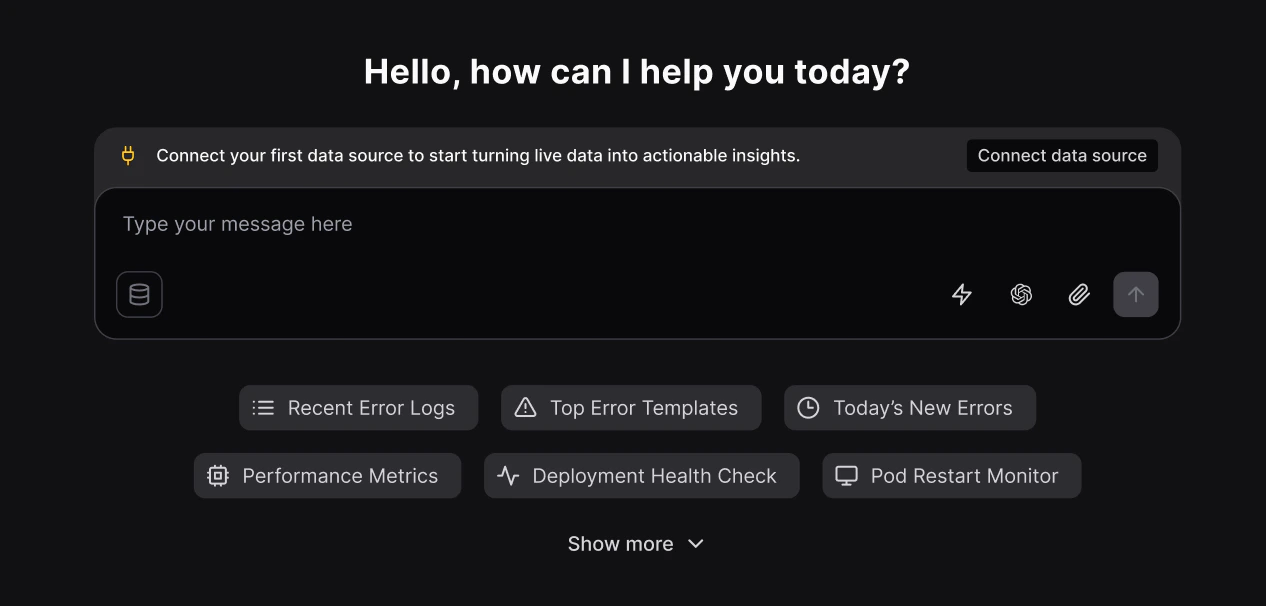
Selecting data sources when you chat
When you ask Olly a question, you can control which data it uses. In the chat UI, use the data source selector inside the message box. Olly can use one Coralogix data source at a time for each query. What gets selected by default:- If you connected one data source (shared or private): That data source is selected automatically in the chat without the blue dot indicator.
-
If you connected multiple data sources: Olly automatically selects the first data source you marked as the default/primary one.
A blue dot indicator appears to highlight that a selection was made — you can change it anytime from the data source selector in the message box.
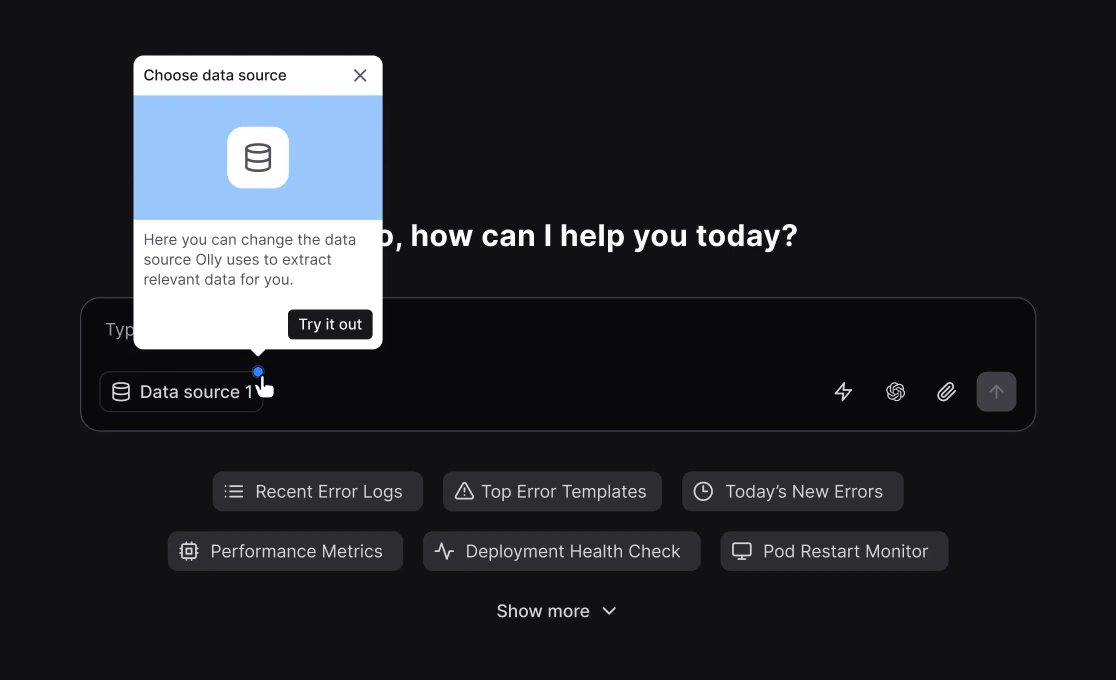
- If the organization has at least one data source shared with you: Olly selects the first data source in the list and shows the blue dot indicator (same behavior as when multiple data sources exist and one is auto-selected).
- If the organization has exactly one shared data source: Olly selects it automatically and does not show the indicator.
- The region of the Coralogix team matches the region of your Olly organization.
- The API key is valid.
- The required permissions are present (see below).
Next steps
Once you connect a data source, Olly starts building the knowledge base. You can immediately begin asking questions in the chat, switch between available data sources from the message box, or add additional private or shared sources as needed. For more information, visit our FAQs page.Coralogix permissions requirements
The following permissions should be attached individually or as presets to your API key, to access all relevant data in your Olly queries. To add or modify permissions for a user role, refer to our Role-Based Permissions tutorial. Your Coralogix API key should have the following configurations:APM
APM
Dashboards
Dashboards
DataQuerying
DataQuerying
Incidents
Incidents
SLO
SLO